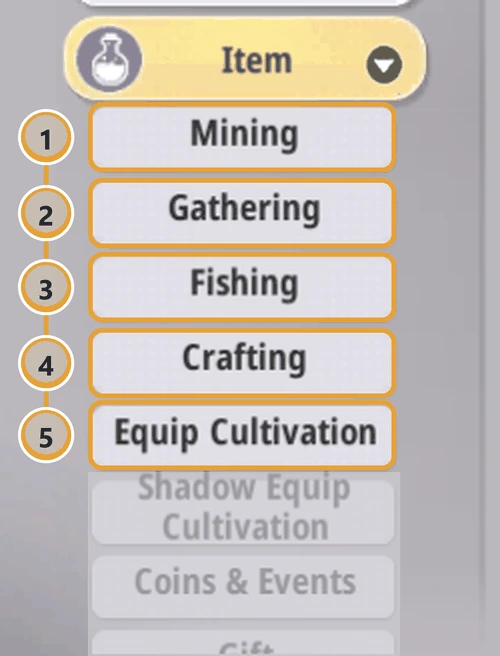
Collects material prices across all five market categories — Mining, Gathering, Fishing, Crafting and Equip Cultivation: 261 items per pass. It works through the same connection to the game as professions do: it presses buttons inside the game, so the game window can be minimised.
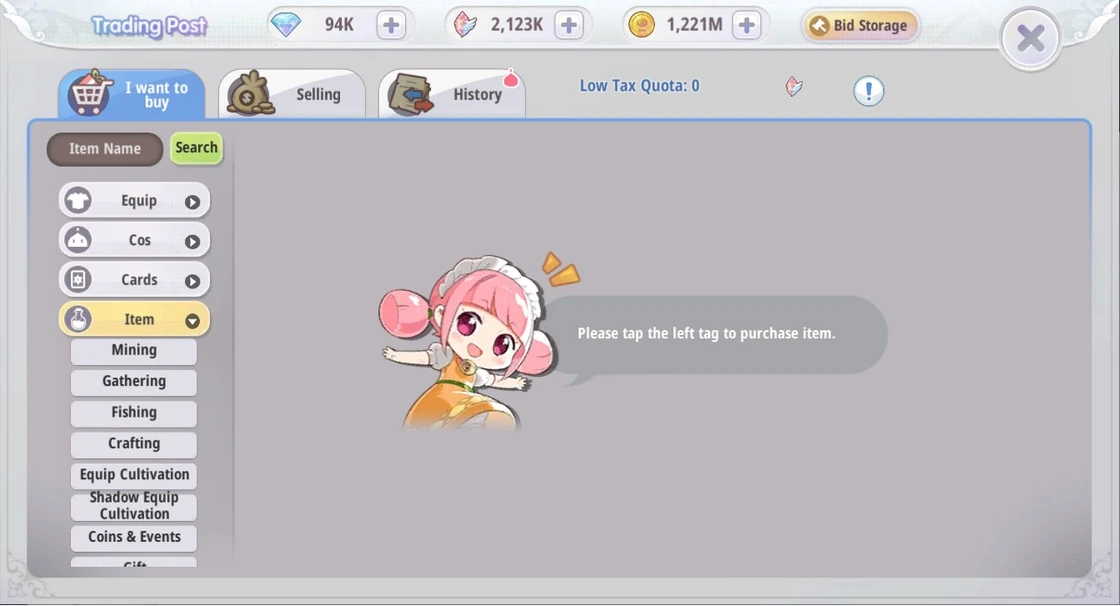
In the gameTrading Post → I want to buy → expand Item
Step by step
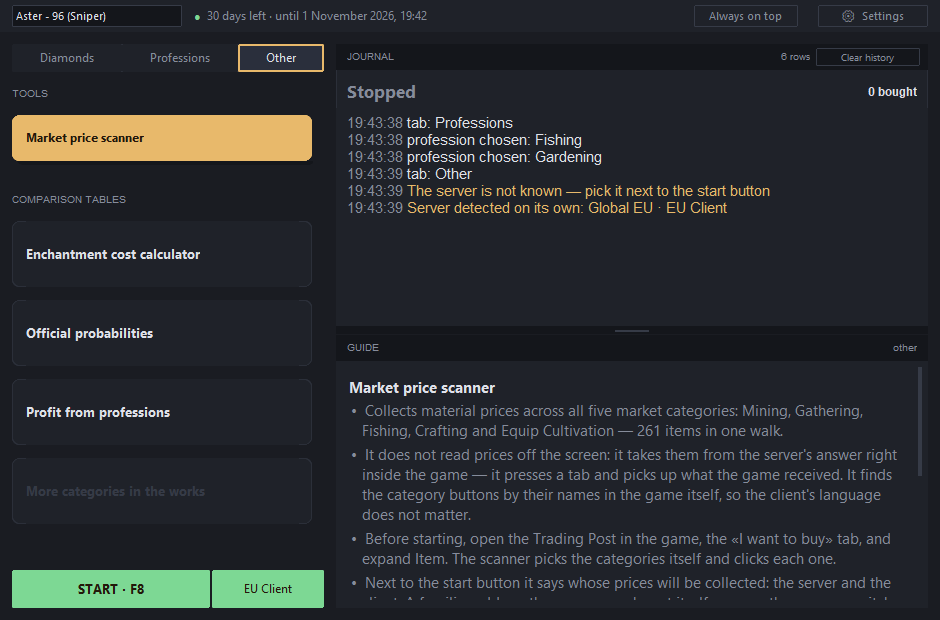
«Other» tab → «Market price scanner»It's highlighted in amber. A character must be selected in the list at the top: without a connection to the game the scanner has nothing to work with.Scanner selected; to the right of «Start» — the server whose prices will be collected: here, EU Client.
Check the server: RU or EURU and EU are different servers with their own markets, and their prices differ. So even before the pass, the scanner shows whose prices it'll collect: on the button to the right of «Start» — EU Client or RU Client. The button is green — the server was detected on its own, and the journal shows «Server detected on its own: Global EU · EU Client».
European server: EU Client.Russian server: RU Client.
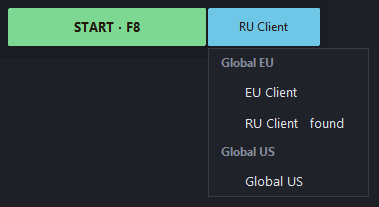
The button is blue — the program doesn't recognise the server's address: the button just shows a guess based on the client, and the journal reads «The server is not known — pick it next to the start button». Click the button and choose your server; the «found» mark shows what the program recognised from the client. The choice is remembered until the program closes.Choosing a server: Global EU has EU Client and RU Client.If several game windows are open, the button shows the server of whichever character is selected at the top left.
Before starting, set up the game like thisTrading Post → I want to buy → expand Item. Don't select a category — the scanner clicks them itself. Don't close the market window until the pass is finished.This is how it should be open in the game before starting.
Press F8The scanner will go through the five categories in order, top to bottom, collecting every item's price in each one. The game window can be minimised, or you can go about your own business: it doesn't touch the window or the mouse.
CategoryItems
1Mining45
2Gathering58
3Fishing71
4Crafting27
5Equip Cultivation60
Total per pass261
The journal: one line per categoryA category is done — the journal shows «Mining: done, all prices collected (45)». A yellow line, «Fishing: no answer — clicking again», isn't an error: that category was opened recently, and the game served prices from its cache without asking the server. The scanner waits a few seconds and clicks it again so the prices refresh — «Fishing: done…» follows right after.
Done — this is what a successful pass looks like
JOURNAL7 rowsClear history
Market walk finishedprices recorded: 261
19:07:45Mining: done, all prices collected (45)
19:07:46Gathering: done, all prices collected (58)
19:07:50Fishing: no response — clicking again
19:07:54Fishing: done, all prices collected (71)
19:07:56Crafting: done, all prices collected (27)
19:07:57Equip Cultivation: done, all prices collected (60)
19:07:58market walk finished, prices recorded: 261
The last line — «market walk finished, prices recorded: 261» — means all five categories have been updated. Prices land in config.json, in the market section — the tables in «Other» use them for their numbers; refresh any table page you have open.
It doesn't read prices off the screen
It presses the tab and takes whatever the game got back from the server in response. That's why a price always lands on its own item, and it finds the category buttons by their names inside the game itself — the client's language doesn't matter.
If something's wrong
What you see
What to do
«… no response — clicking again»
Nothing to do: the game served prices from its cache. The scanner will click again — up to three times per category — and the prices will refresh.
«…the game showed the tab from memory — prices of … kept»
And even after three clicks there are no fresh prices — this category kept its old ones, from that date. Run the pass again in a minute.
«The server is not known», the server button is blue
Click the server button and pick your own — once per address.
«The game server changed: was …, now …»
The table now has prices from two servers. Run the pass again on the right server — all the prices will be overwritten.
«The category buttons are not visible — open the Trading Post in the game, the «I want to buy» tab, and expand Item»
The market window is closed, Item is collapsed, or the wrong tab is open. Set up as in step 3 and press F8 again.
«CHOOSE A CHARACTER» on the start button
Select a character in the list at the top left: the scanner works through the connection to the game.
«LOADING…» on the start button
The program is finding out the selected character's server — wait a couple of seconds.